
Creating an Account & Signing In
Getting started with FMAX begins by signing in to your account.
Sign in to FMAX
Section titled “Sign in to FMAX”- Go to the FMAX website.
- Click Sign In in the top-right corner.
- Choose your preferred sign-in method.
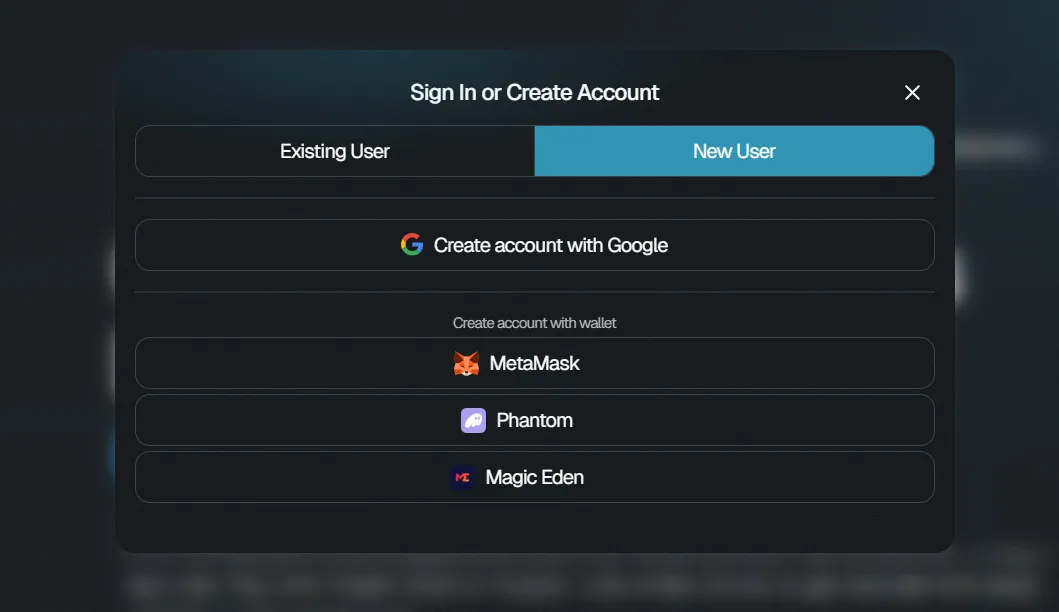
Depending on the available options, you can sign in using:
- MetaMask
- Phantom
- MagicEden
Follow the instructions shown on screen to complete the sign-in process.
Signing in with Google
Section titled “Signing in with Google”Select Sign in with Google and follow the Google authentication process.
Once authentication is complete, you will be signed in to your FMAX account.
Signing in with a wallet
Section titled “Signing in with a wallet”You can also sign in using a supported crypto wallet such as MetaMask, MagicEden or Phantom.
Select your preferred wallet and follow the prompts from your wallet to connect and authenticate.
You do not need to connect or provide the password for your X account to use FMAX.
What’s next?
Section titled “What’s next?”Once you’re signed in, you can access your FMAX dashboard, add credits, place orders, and manage your account.
Next, learn how to buy your first followers with FMAX.